.png?width=250&height=92&name=Reunion_Logo_White%20(1).png)
What are Validation Flags?
Validation flags do not necessarily mean an entry is "wrong," but they highlight data points that exceed typical project thresholds. This helps administrators quickly identify data entry errors, such as typos or improbable work schedules, before reports are finalized.
Available Validation Settings
There are two primary ways to configure suspicious data detection:
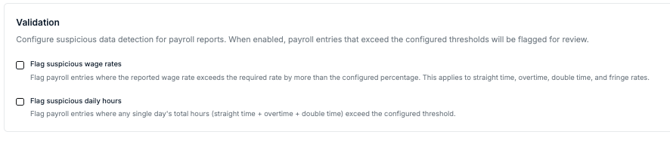
1. Flag Suspicious Wage Rates
This setting flags any payroll entry where the reported wage rate is significantly higher than the required prevailing wage rate.
-
Calculation: The entry is flagged if the reported rate exceeds the required rate by more than your configured percentage.
-
Scope: This applies to straight time, overtime, double time, and fringe rates.
-
Use Case: Useful for catching accidental over-reporting or data entry mistakes (e.g., entering $300.00 instead of $30.00).
2. Flag Suspicious Daily Hours
This setting flags any entry where an individual employee's total hours for a single day exceed a specific limit.
-
Calculation: The flag triggers when the sum of straight time + overtime + double time exceeds your configured threshold.
-
Use Case: Helps identify impossible or highly unusual workdays (e.g., reporting 24+ hours in a single day).
Key Usage Notes
-
Default State: This feature is toggled Off by default.
-
Activation Scope: When enabled, the platform will only flag data going forward. It will not retrospectively flag historical data that has already been inputted or submitted.
How to Configure Validation Thresholds
These settings are managed at the Sponsor level on the main Settings page.
-
Navigate to the Settings page.
-
Locate the Validation section.
-
Check the box to enable Flag suspicious wage rates or Flag suspicious daily hours.
-
Enter your desired percentage or hour threshold in the configuration fields.
-
Click Save.
What Happens When Data is Flagged?
-
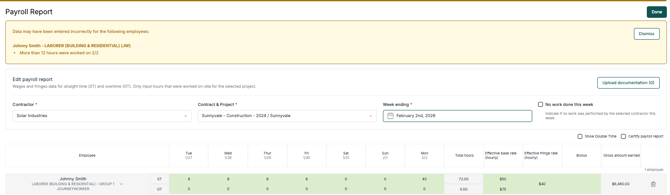
For the Sponsor: Flagged entries will be highlighted in your dashboard and payroll review screens, allowing you to quickly spot anomalies.
-
For the Contractor: Contractors may be prompted to verify the data or provide an explanation for the outlier before the submission is accepted.

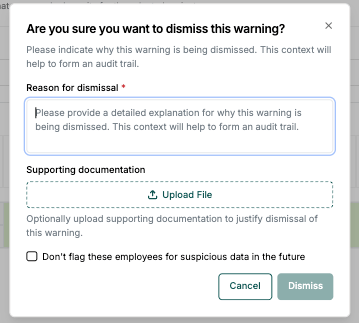
Note: These flags are meant as a safety net for data integrity. Setting thresholds too low may result in "false positives" for legitimate high-earners or busy workdays, while setting them too high may miss genuine errors.
Disabling Flags for Specific Work Classifications
While global validation settings apply to the entire project, you can choose to bypass these warnings for specific employees or roles that naturally exceed standard thresholds (e.g., highly specialized roles with high wage rates).
To disable suspicious data flags for a specific work classification:
-
Navigate to the Employee Profile: Open the profile of the employee you wish to adjust.
-
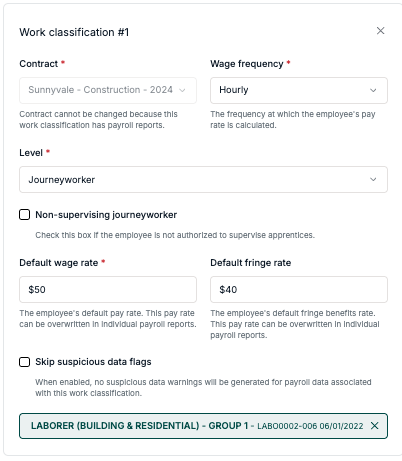
Edit Work Classification: Locate the specific work classification entry.
-
Enable Skip: Check the box labeled "Skip suspicious data flags".
-
Result: When enabled, the platform will not generate any suspicious data warnings for payroll data associated specifically with that work classification.
Note: This is useful for avoiding "noise" in your dashboard if you have trusted employees who consistently work long hours or receive wages far above the prevailing rate.