.png?width=250&height=92&name=Reunion_Logo_White%20(1).png)
Note: This page is for users with an LCP Integration to Reunion, or users that are uploading data via our CSV Configuration tool on the CSV Uploads page
What is work classification mapping?
Work classification mapping connects the craft and classification names from your payroll data to their corresponding Department of Labor (DOL) classifications. This step is required for accurate prevailing wage and apprenticeship compliance calculations.
When you upload payroll data via CSV or sync it through an LCP integration, Reunion pulls in the classifications exactly as they appear in your payroll system. Because those names often differ from the official DOL classification names, you need to confirm the correct match for each one.
A few things to know before you start:
- Mapping is done per classification, not per employee. Once a classification is mapped, it applies automatically to every employee under that classification.
- Mapping is required each time a new contract is created, and when an employee appears on a payroll report for that contract for the first time.
- Selecting the wrong DOL classification will affect compliance calculations, so take care to confirm the correct match.
1. Navigate to the "Integrations" page- "Work Classification Mapping" tab
- Map your employee's craft/classification to the DOL classification/Reunion Work Classification where indicated "Mapping required"
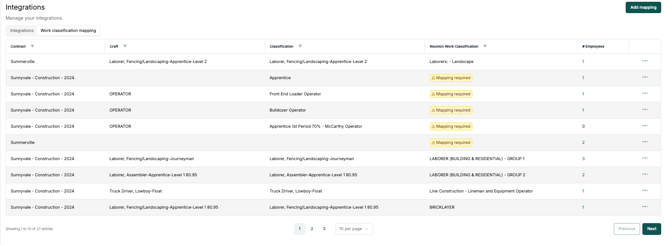
2. Click the three ellipses to the right of the "Mapping required" to "Edit"
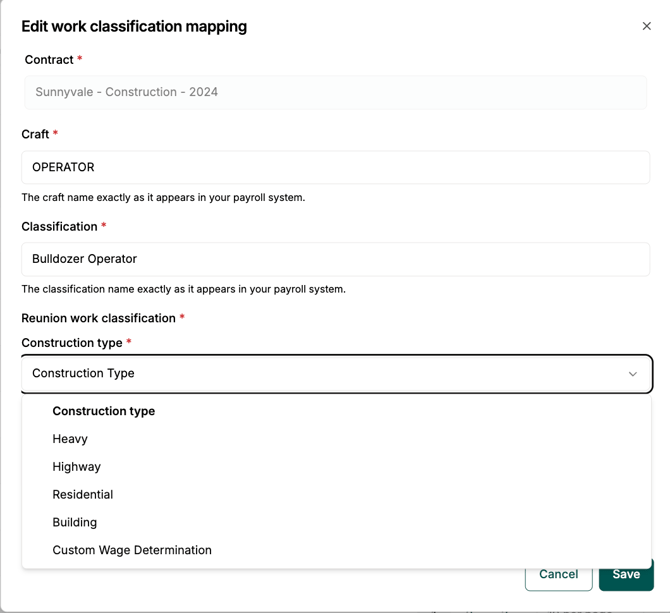
The "Craft" and "Classification" shown are what came from your CSV of data. You need to map the Reunion work classification/DOL classification that matches it below.
3. Click into "Construction Type" to select from the drop down options
4. Scroll through the applicable DOL classifications that associate to that project/contract and select the appropriate one and "save"
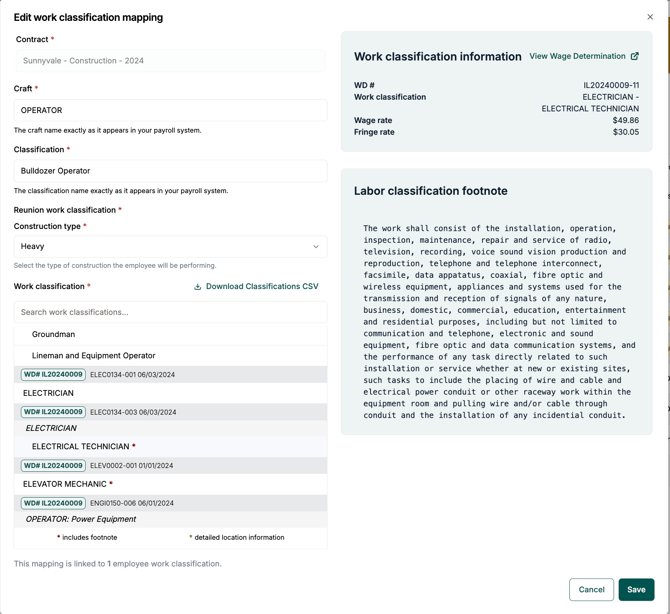
5. Click "Confirm & Save"
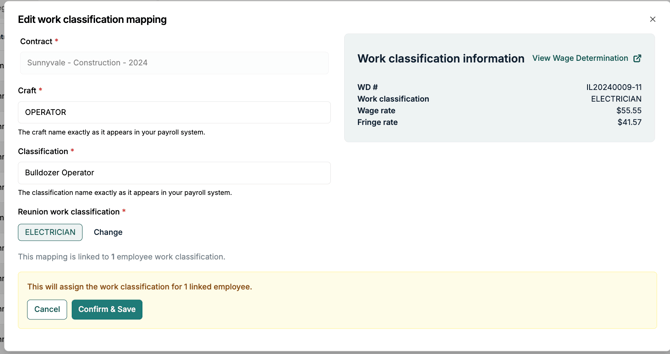
This mapping for that specific classification will then apply to all employees associated to that craft/classification in your data
Other tips:
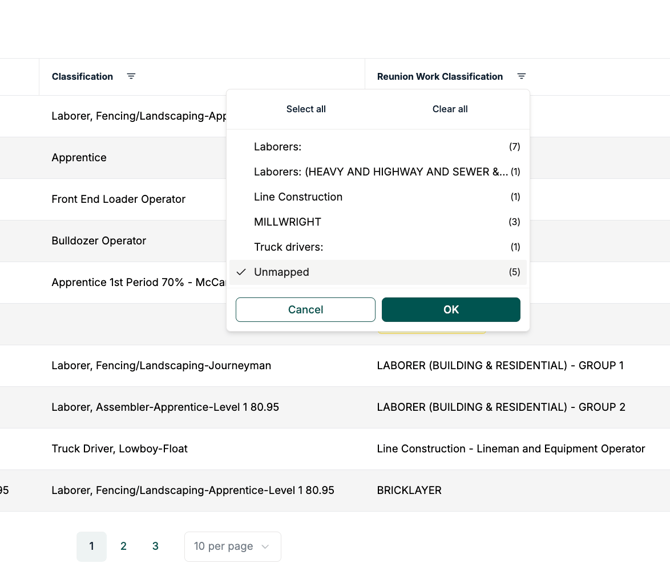
- Filter the Work Classification Mapping table to simplify your viewing experience (ex: showing only "Unmapped" classifications needing to be done