.png?width=250&height=92&name=Reunion_Logo_White%20(1).png)
If no work was performed on a project during a given week, you can easily indicate this in Reunion.
There are two ways to mark “No Work” weeks:
- Individually – for a single contractor/week
- In bulk – for multiple weeks at once
Option 1: Mark an Individual Week as “No Work”
1. Navigate to the PWA Compliance Dashboard
https://app.reunioninfra.com/pwa/dashboard

2. Click “Payroll Reports”
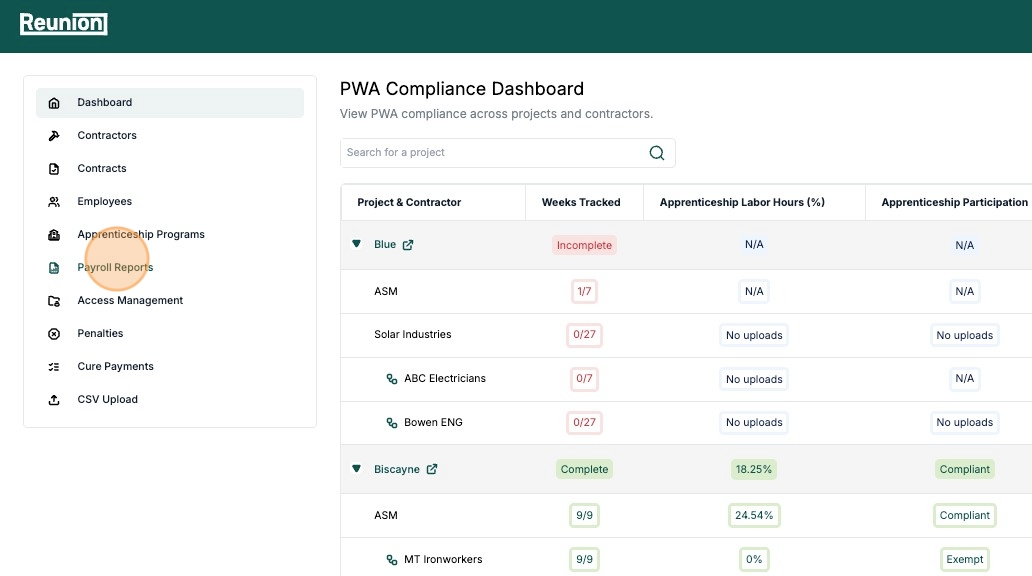
3. Click “Add report manually”

4. Select the Contractor

5. Select the Contract and Project

6. Select the Week Ending date

7. Check the box “No work done this week”

8. Click “Continue”

9. Click “Save”

✅ That week will now be marked as “No Work.”
Option 2: Mark Multiple Weeks as “No Work” (Bulk Action)
If you need to indicate several weeks at once, use the bulk update tool.
1. Go to the Dashboard

2. Click into the contractor row

3. On the right side, under Weeks Tracked, click “Bulk No Work”

4. Toggle on all the weeks where no work was performed

5. Click “Indicate No Work” to save

✅ All selected weeks will now show as “No Work” in the Dashboard.
When Should You Mark No Work Weeks?
-
If a contractor did not perform any physical labor work for a project in a given week
-
To keep your payroll reporting accurate and avoid unnecessary reminders