.png?width=250&height=92&name=Reunion_Logo_White%20(1).png)
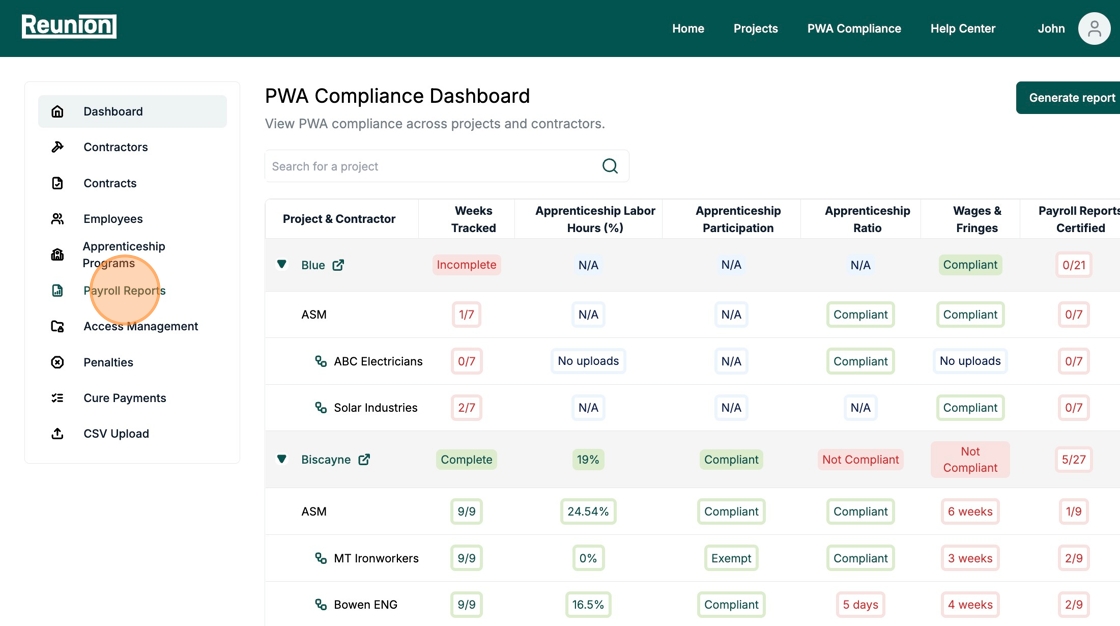
1. Navigate to "Payroll Reports" in your Reunion portfolio
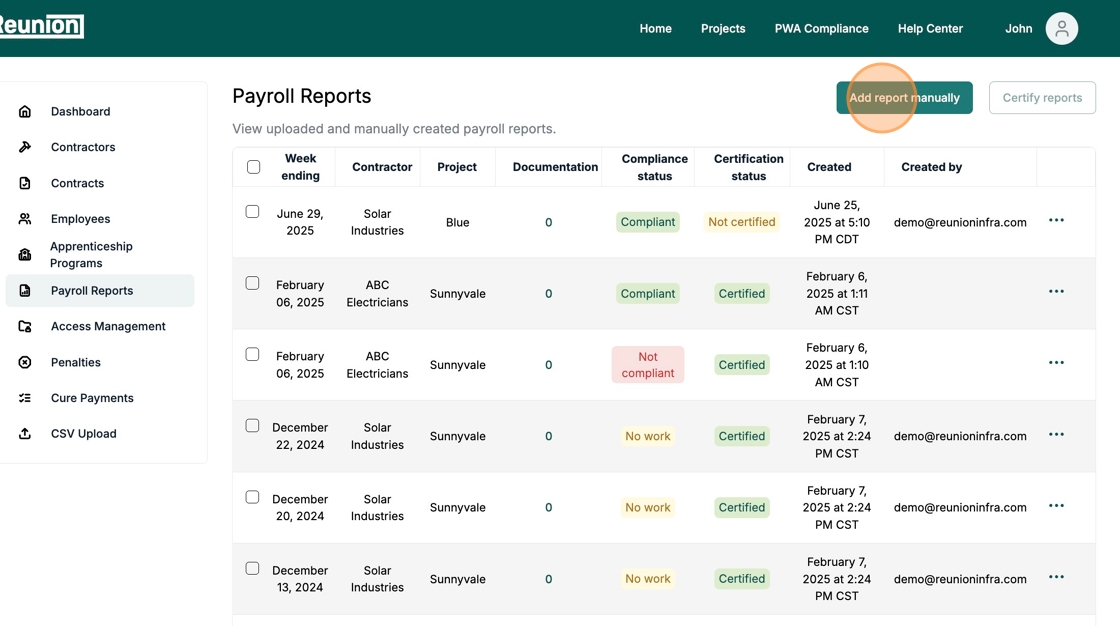
2. Click "Add report manually"
3. Add the Contractor

4. Add the Contract & Project

5. Set the Week Ending date

6. Add an Employee
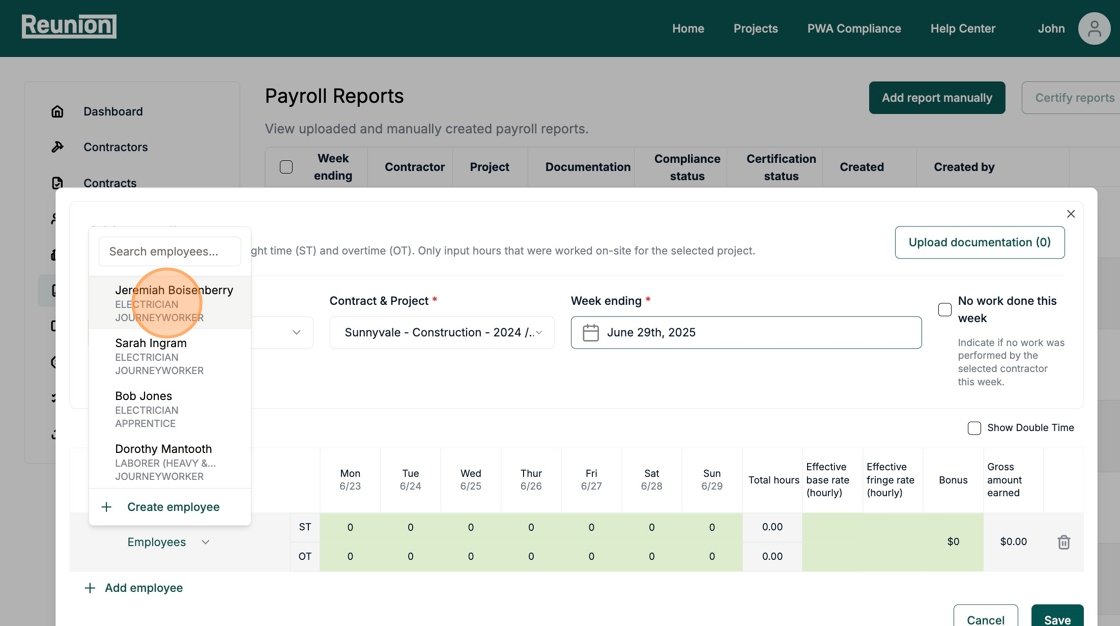
7. Enter Labor Hours

8. Adjust Wages, if needed (defaults populate automatically)

9. Upload Documentation, if applicable

10. Click "Save changes"

11. Finally, click "Save" to complete Payroll documentation

How to Edit a Payroll Report:
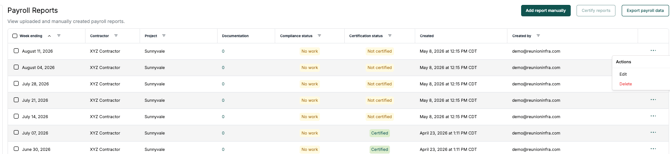
1. Go to Payroll Reports page and locate the payroll report you want to view/edit
Tip: You can filter this table to organize your view
2. Click the three ellipses to the right of the payroll report to "Edit"
3. Edit the data as needed
Payroll reports are always editable, unless a cure payment has been added to an employee.
4. Click "Done" to save
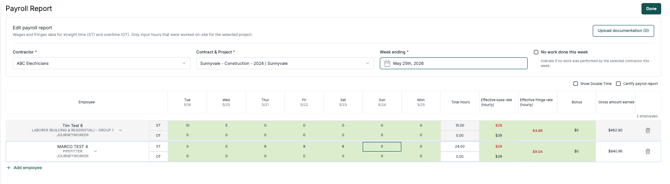
Note: If you have already certified the payroll report, editing it will un-certify it. You will have to re-certify it after making adjustments.